
How to Install Windows 10 (With Screenshots)

Ruangngoprek.web.id - How to Install Windows 10. Windows 10 is an operating system released by Microsoft Corp. to improve on previous versions of Windows. Many say that Windows 10 is a combination of two previous versions of Windows, namely Windows 7 and Windows 10. Windows 10 itself is actually available for free.
If the user has already got the Windows 8 version on a computer or laptop device, then Windows 10 can be obtained for free by updating from the Windows 8 or Windows 8.1 version.
Even though it is said to be a combination of features from Windows 7 and Windows 8, in fact Windows 10 has so many features, some of which are completely new and of course very useful for users.
Windows 10's Featured Features
- Virtual Desktop
- Windows Sandbox
- Task Manager
- DirectX 12
- PIN
Cara Install Windows 10
1. First of all, please prepare the Windows 10 master, either in the form of a CD or a bootable USB.
3. Next step, please plug the bootable USB into the computer.
4. Turn on the computer then press the F9 button (HP brand laptop), F11 (Desktop computer), F12 (Laptop)
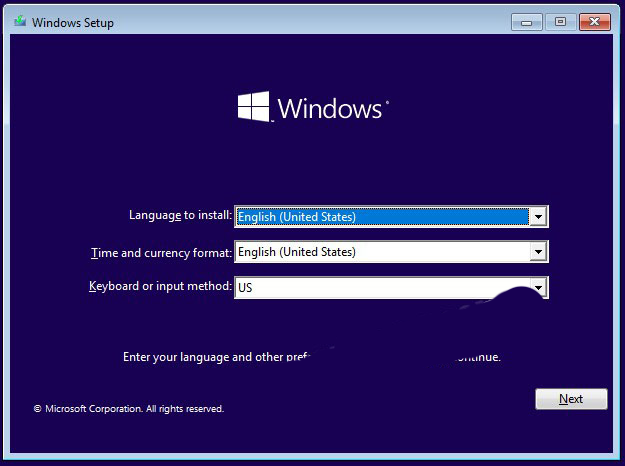
5. Next, change the Time Currency format to Indonesia , then click Next .
6. Next, click Install Now .

7. Next, select the operating system, for example Windows 10 Pro , then click Next .

8. Check I accept the license terms , then click Next .

9. Next, click Custom: Install Windows Only (Advance).

10. Next, click New , then Apply .

11. Next, select the partition where you want to install Windows 10, then click Next.

12. Wait a few moments for the next process.

13. Please select the Region, for example Indonesia , then click Yes .

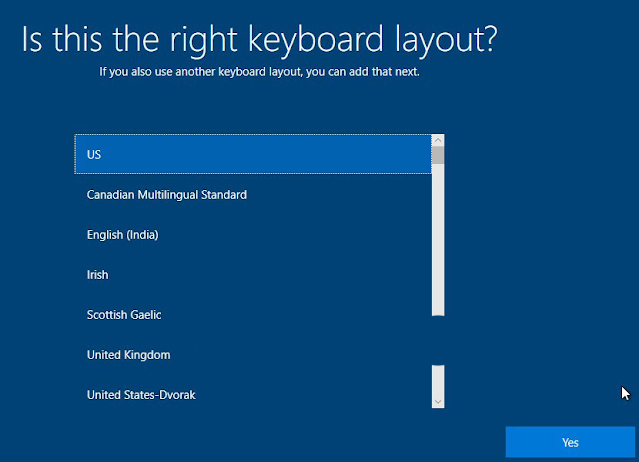
14. Select Keyboard Layout, US , then click Yes .

15. Please click Skip .

16. Klik I Don't have internet.

17. klik Continue with limited setup.

18. Give your computer user a name then click Next .

19. Next, enter the password. If you don't want to give the computer a password, click Next.

20. Next, click Accept .

21. Finish

Your computer has Windows 10 installed and is ready to use.

That concludes this article on how to install Windows 10, complete with images. We hope this is helpful.
)
Post a Comment for "How to Install Windows 10 (With Screenshots)"