
The Easiest Way to Unpack APKs with Advanced Apk Tool

Ruangngoprek.web.id - Do you want to edit and modify an APK file? There are many ways and tutorials to decompile an APK, but many people experience difficulties, either because the program is difficult to understand or the program often crashes.
Here is one of the easiest ways to decompile and recompile APK using the Advanced APKTOOL V4.2.0 application via PC.
Before starting, there are several notes that you should pay attention to regarding unpacking APKs.
1. DECOMPILE is the term for dismantling an apk.
2. RECOMPILE is a term for repacking an APK.
3. SIGN APK to sign the apk
4. This tutorial uses a PC NOT an Android smartphone.
Prepare the following application requirements:
3. Text Editor (Notepad, Notepad++, Sublime Text or others)
APK DECOMPLE PROCESS or APK DISASSEMBLE
1. Extract Advanced APKTOOL V4.2.0 then run Advanced APKTOOL

Place the apk file to be unpacked in the AdvancedApkTool - 2-In folder
Then type the number 2 (selecting Decompile Files)

Type 1 then ENTER (selecting myapplication.apk which has been entered into the AdvancedApkTool folder - 2-In
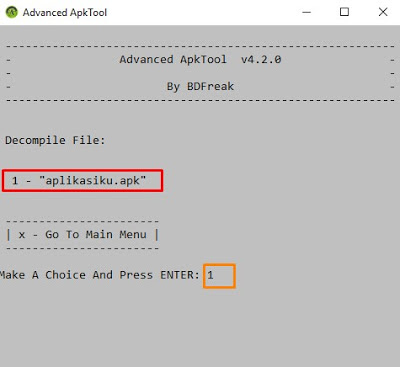
Type Y then ENTER to continue, a new window will appear, wait until the decompile process is complete.


When finished, press any button to return to the main menu.
APK EDITING PROCESS
If the decompile process is successful, there will be a folder with the name of the apk in the AdvancedApkTool folder - 3-Out

Use Text Editor - Edit as desired, in this section you can change the application name, change the icon and so on.
After completion, continue to the Recompile process.
APK RECOMPILE PROCESS or APK PACKING
Type number 3 (select Recompile Files)

Type 1 then ENTER (selecting the application.apk that was edited earlier)

Just select Only Recompile - press number 1 then ENTER


Type Y then ENTER to continue, a new window will appear, wait until the Recompile process is complete.
If successful, there will be an application named .apk in the AdvancedApkTool - 4-Done folder . However, the apk cannot be used yet because it hasn't been signed.
APK SIGN PROCESS
Type number 4 (selecting Sign Files)

Type 1 then ENTER (selecting the application.apk that was recompiled earlier)

Type Y then ENTER to continue, "application.apk" signed will appear, meaning it was successful.


Please copy the apk to your smartphone and try to install it.
If you encounter an error while decompiling, that's normal, as some APKs cannot be decompiled or recompiled due to developer security. However, if you encounter an error while recompiling, it means your editing is incorrect.

Post a Comment for "The Easiest Way to Unpack APKs with Advanced Apk Tool"